Arch Linux Installation (with Secure Boot)
#include metadata.h
// Created Jan 31, 2026
// Last updated Aug 10, 2026
Table of Contents
My preferred route for installing Arch Linux including optional Secure Boot support. This mostly exists just in case I ever have to do a full reinstall/just because I want to fully document my installation route.
Important: This is my own personalized installation guide for personal use. I do not recommend following this if you aren't me. Use the official installation guide instead.
This setup uses systemd-boot as the bootloader and boots from a signed unified kernel image (UKI) incorporating the kernel image, initrd, and kernel commandline in one file to reduce complexity (as a side benefit, the initrd and kernel commandline are also validated by Secure Boot).
Warming up
Download the latest ISO and follow the instructions on that page to verify it. Then put it on a USB drive to boot it either using Ventoy or by writing it directly to the USB drive (see the relevant ArchWiki page for more info).
Boot the installation media. After it boots up, you'll be greeted by the ArchISO prompt: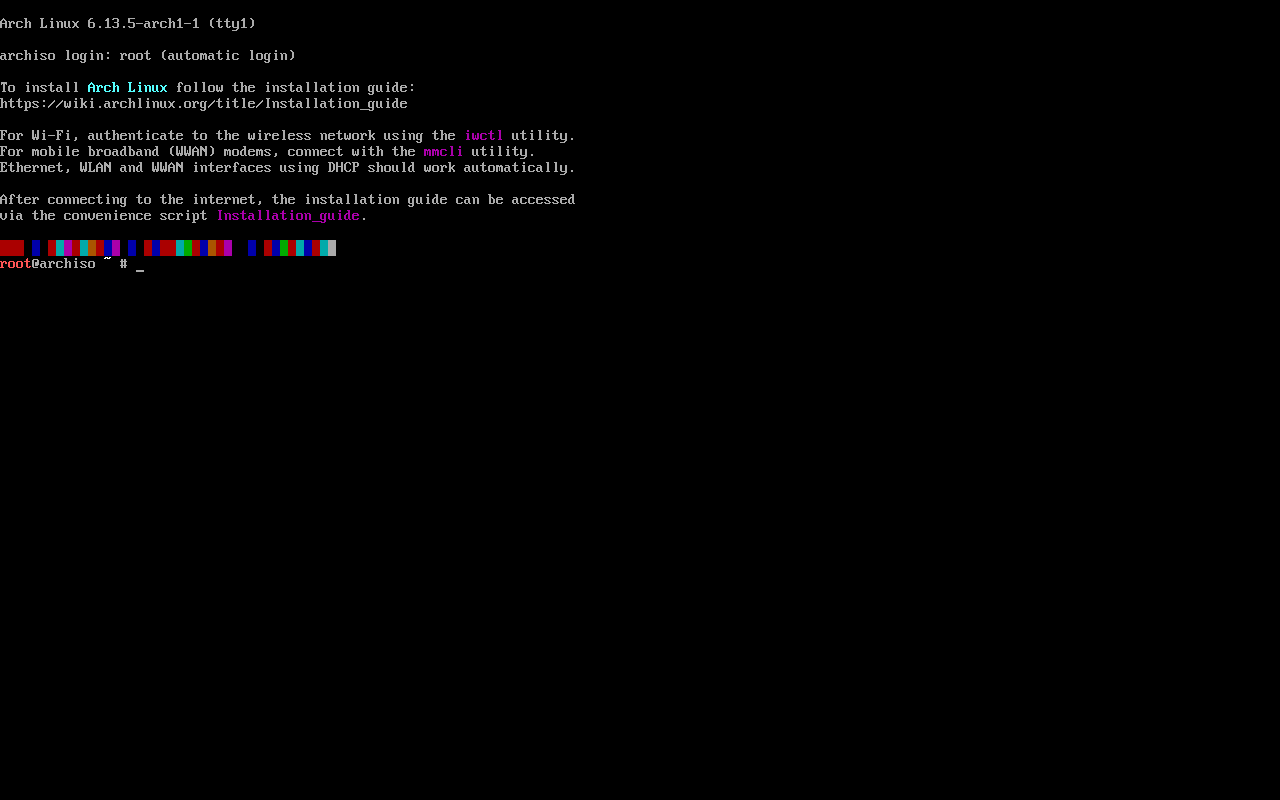 The Arch Linux ISO doesn't support Secure Boot, so it must be disabled before booting it.
Set the console font if necessary (for example on not-quite-HiDPI laptop screens) and ensure you have Internet access as described in the installation guide.
Partitioning
See the installation guide and Partitioning#Partition scheme for more details.
Below is my preferred partitioning scheme (GPT/UEFI). I use swap on zram and do not require hibernation.
| Mount point | Partition | Partition type GUID | Suggested size |
|---|---|---|---|
/efi |
EFI System Partition | C12A7328-F81F-11D2-BA4B-00A0C93EC93B (uefi alias in fdisk) |
250MiB-1GiB |
/ |
Linux x86_64 root | 4F68BCE3-E8CD-4DB1-96E7-FBCAF984B709 |
Remainder of the drive. |
Create the partitions using, e.g, fdisk. Obviously all data on the drive will be erased so take appropriate precautions. Make note of the numbers (e.g sda1, sda2, etc).
Now the root partition can be formatted as ext4 (although other filesystems can be used).
# mkfs.ext4 -L "Arch Linux" /dev/sda2
The ESP has to be formatted as FAT32, unless re-using an existing one, then don't format it.
# mkfs.fat -F 32 -n "EFI" /dev/sda1
Mount the root partition to /mnt and the ESP to /mnt/efi.
Installing the base system
Generally refer to the official installation guide for this part. Before installing packages, the following reflector command should be used to generate the pacman mirrorlist:
# reflector --latest 5 --sort rate --country 'United States' --save /etc/pacman.d/mirrorlist
Anyways time to pacstrap the system. Suggested packages to add to the pacstrap command (my choices plus some things beyond what the installation guide suggests):
base-develfor AUR packages and development- Userspace filesystem utilities: At a minimum,
dosfstools,e2fsprogs, andexfatprogs.ntfsprogsmight be wanted for NTFS. If I ever get into Btrfs, obviouslybtrfs-progs. - I use
networkmanagerfor network/Internet access - Always
fastfetchfor good luck ;)
Configuration
It's now time to perform initial configuration of your installation.
Back in the day you had to generate /etc/fstab to handle partition mounting on boot but Systemd can automount partitions when they have the correct types (shown above in the partition layout). So you can skip generating it and continue on in the chroot.
I skipped setting up a swap space when partitioning since I use swap on zram and this is best set up at this stage once we're in the chroot. The easiest way to set this up is to install zram-generator and create /etc/systemd/zram-generator.conf with the following:
[zram0]
zram-size = min(ram / 2, 16384)
This will be enough to get a zram swap device, half the size of the physical RAM with a maximum size of 16GiB. It won't actually be created until we reboot, however.
For hibernation support (swap on zram doesn't support hibernation), create a swap file that is half the size of your RAM to start with. I rarely use hibernation though and it's best to avoid it entirely when dualbooting since that causes all sorts of weirdness.
Follow the installation guide from the "Time" section up until "Initramfs". I use systemd-timesyncd for time synchronization. For the "Network configuration" section, enable NetworkManager.service and install/enable firewalld.
As far as user accounts go, I prefer to lock the root account (preventing you from logging into it) and rely on sudo for root access. This does have the distinct issue that the "rescue" mode will be completely non-functional but I keep an "Arch To Go™" installation on my Ventoy drive for troubleshooting anyways. Sudo should already be installed (it's a dependency of base-devel). Configure it to give members of the wheel group admin privileges. Then add a user account that is in the wheel group and set a password for it. Finally lock the root account.
Also set up Plymouth.
Desktop environment
I currently use KDE Plasma because it's epic. Other supported DEs can be found on the Desktop Environment ArchWiki page.
To install a fully featured KDE Plasma session with my preferred KDE apps + Firefox as the web browser, run the following command:
# pacman -S plasma-meta kde-system-meta plymouth-kcm breeze5 dolphin-plugins ffmpegthumbs kdeconnect kdegraphics-thumbnailers kdenetwork-filesharing kmines knights kpat kwalletmanager phonon-qt6-vlc plasma5-integration icoutils power-profiles-daemon thermald ark dragon elisa filelight gwenview kamoso kate kcalc kcharselect kdialog konsole kup markdownpart okular svgpart firefox
Don't forget to enable plasmalogin.service to actually boot into a graphical session.
For graphics drivers consult this handy table for Intel and AMD graphics (note that mesa which provides the basic graphics stack and OpenGL drivers is required by Plasma so is already installed):
| GPU brand: | Required packages for Vulkan and hardware video acceleration: |
|---|---|
| AMD | vulkan-radeon (hardware video acceleration is built into mesa) |
| Intel | vulkan-intel (Only supports Broadwell and newer GPUs, though Ivy Bridge and Haswell have partial support)intel-media-driver (Broadwell and newer, recommended)libva-intel-driver (GMA 4500 through Coffee Lake, legacy driver)For QuickSync video, install libvpl and one of these packages depending on your hardware:vpl-gpu-rt (Tiger Lake and newer)intel-media-sdk (Broadwell through Ice Lake) |
While it's unlikely I will ever use an Nvidia GPU, if I do end up with one, see the Nvidia page on the ArchWiki.
Kernel/initramfs config
Most of this is to silence the console output while booting. Make sure the HOOKS array in mkinitcpio.conf contains the following:
HOOKS=(base systemd autodetect microcode modconf kms keyboard sd-vconsole block filesystems plymouth)
While you would normally include fsck to check filesystems on boot, systemd has a built-in mechanism to do this so it can be removed.
Follow the instructions at Unified kernel image#mkinitcpio to set up UKI generation. Do not regenerate the initramfs after finishing, as the required directory on the ESP hasn't been created yet. For the kernel command line create /etc/cmdline.d/silent.conf containing the following:
quiet loglevel=3 systemd.show_status=auto rd.udev.log_level=3 splash
And /etc/cmdline.d/disable-zswap.conf since we're using swap on zram:
zswap.enabled=0
Systemd's GPT partition automounting mechanism will automatically find and mount the root partition, don't worry about it.
Finishing up
There's only a couple more steps!
Install systemd-boot as the bootloader. Systemd-boot automatically picks up UKIs on the ESP, so no further configuration is required to boot. Make sure to actually regenerate the initramfs now to build a UKI and place it on the ESP.
Secure Boot (optional)
In order to set up Secure Boot, reboot to the BIOS, put Secure Boot in "setup mode", and then boot into the new system. After logging in to the new install, make a fastfetch screenshot for good luck before proceeding.
I use the manual process to generate/enroll keys, but I wrote a script which largely automates the entire thing. Download and run it:
$ curl -L -O https://ejsnow.github.io/resources/sbKeySetup.sh
$ chmod +x sbKeySetup.sh
$ ./sbKeySetup.sh
It will automatically generate and try to enroll custom Secure Boot keys, including Microsoft's keys in case your system has any signed OpROMs (particularly for SSDs and GPUs). If the keys fail to enroll and Secure Boot is definitely in setup mode, try to manually enroll them like this:
# sbkeysync --keystore /etc/secureboot/keys --verbose
# sbkeysync --keystore /etc/secureboot/keys --verbose --pk
If the platform key enrollment still fails, but the KEK and db keys enroll successfully, you can also try this:
# efi-updatevar -f /etc/secureboot/keys/PK/PK.auth PK
See the relevant section on the ArchWiki for more details.
All keys can be found in ~/secure-boot-keys, and the .auth files enrolled in the firmware (except for noPK.auth) are copied to /etc/secureboot/keys. The db key (used to actually sign binaries) is also copied to /etc/secureboot.
To automatically sign the kernel whenever the initramfs/UKI is rebuilt, add the following to /etc/kernel/uki.conf:
[UKI]
SecureBootSigningTool=sbsign
SecureBootPrivateKey=/etc/secureboot/db.key
SecureBootCertificate=/etc/secureboot/db.crt
Note: The noPK.auth file in ~/secure-boot-keys is important! It lets you remove your Secure Boot keys and put Secure Boot back in setup mode. Keep this file, as well as the private .key files, safe, and don't share them!
The kernel and bootloader must be signed otherwise the system will not boot.
# sbsign --key /etc/secureboot/db.key --cert /etc/secureboot/db.crt --output /efi/EFI/Linux/arch-linux.efi /efi/EFI/Linux/arch-linux.efi
# sbsign --key /etc/secureboot/db.key --cert /etc/secureboot/db.crt --output /efi/EFI/systemd/systemd-bootx64.efi
# sbsign --key /etc/secureboot/db.key --cert /etc/secureboot/db.crt --output /efi/EFI/BOOT/BOOTX64.EFI /efi/EFI/BOOT/BOOTX64.EFI
A pacman hook can be used to automate systemd-boot resigning when systemd updates.
Finishing touches
Now it's time to put some finishing touches on the installation. I use yay as my AUR helper, which supports the Apdatifier plasmoid (which can do some basic package management stuff but most importantly makes it way easier to keep your system up to date).
To install yay, open a terminal and navigate to /tmp. Then run the following:
# pacman -S git
$ git clone https://aur.archlinux.org/yay.git && cd yay
$ makepkg -sci
I also like to add the Chaotic-AUR repository to my systems so installing AUR packages doesn't take a million years. It provides prebuilt versions of popular AUR packages and is very nice to have.
Now, here's all the other apps I like to install:
$ yay -S --needed awatcher-bundle-bin btop digikam discord easyeffects gamemode lib32-gamemode informant kdenlive keepassxc kweather libreoffice-fresh mangohud modrinth-app needrestart obs-studio droidcam-obs-plugin obs-vkcapture-git lib32-obs-vkcapture-git obs-wayland-hotkeys-git pacman-cleanup-hook spotify steam vlc
And finally my Plasma dotfiles. Follow the instructions on the repository and that will about do it.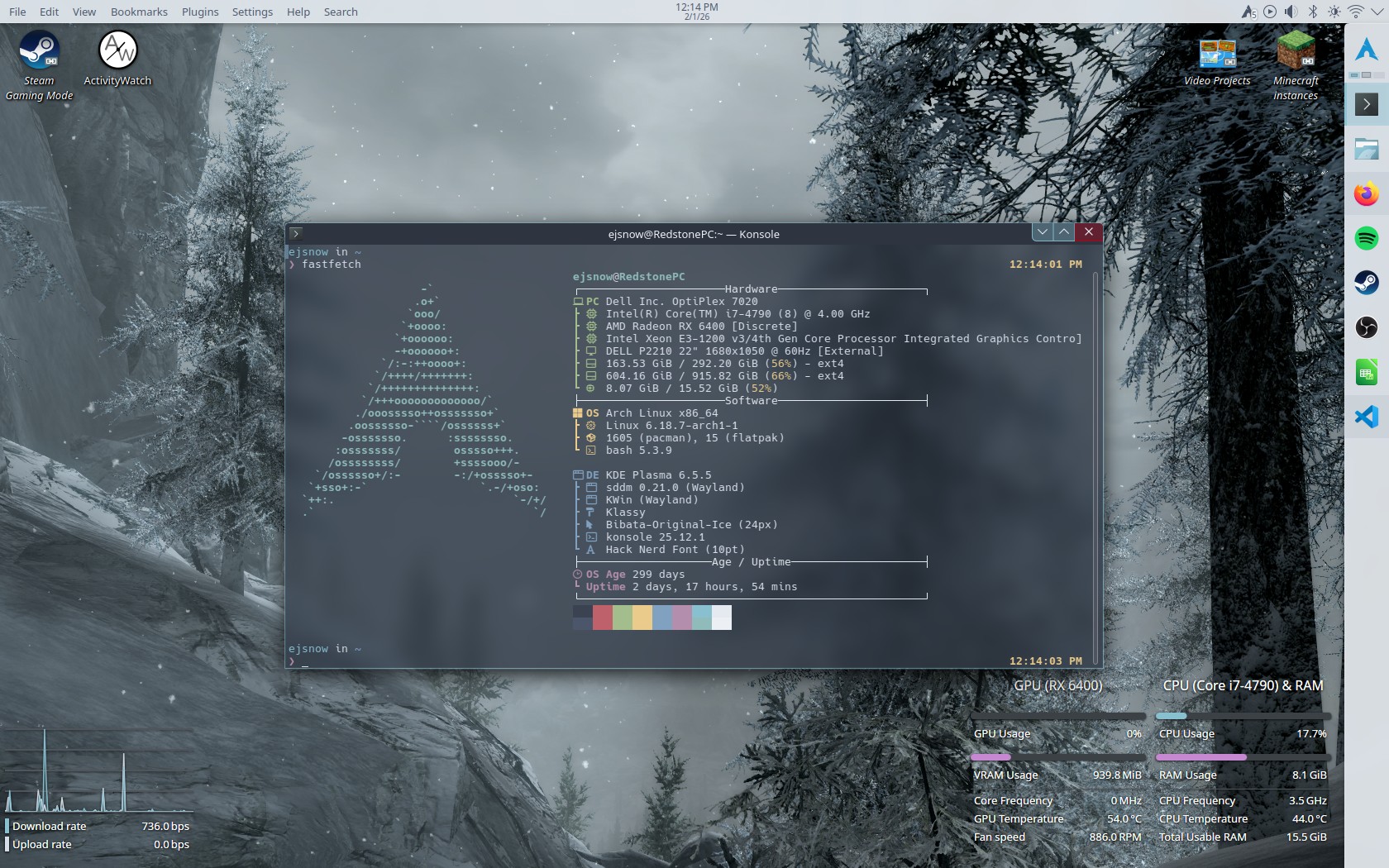
References/See Also
I wrote this with the help of MANY ArchWiki pages and a few manpages. Seriously the ArchWiki is amazing, go check it out.
- The official installation guide (The basic skeleton for this page)
- mkfs.ext4 manpage (mostly for adding a filesystem label when formatting)
- mkfs.fat manpage (Same as above)
- Reflector examples (Used this to build the mirrorlist generator command)
- Swap on zram
- Hibernation
- AMD graphics (AMDGPU) (For the required packages table in #Desktop Environment)
- Intel graphics (same as above)
- Hardware video acceleration (Same as above lol)
- Silent boot (Kernel parameters/initramfs config to silence the console while booting)
- Secure Boot#Manual process (Reference for Secure Boot setup)
- Installing AUR packages (For installing yay at the very end)