EJSnow
← 🏡 Home

Arch Linux Installation

#include metadata.h
// Created Jan 31, 2026
// Last updated Feb 1, 2026
Table of Contents

    Important: This is my own personalized installation guide for personal use. I do not recommend following this if you aren't me. Usually, you'll want to follow the official installation guide instead. Note that instructions here may be out of date and/or I might have made a little mistake (it happens lol). Best to reference the ArchWiki. (Realistically I'm probably not going to use this that much but it's a good idea to fully document my installation anyway.)

    Warming up

    First off, there are a few formatting conventions in the command snippets below. Text enclosed in asterisks (*Like this*) is a placeholder that should be changed as needed (for example, a reference to a block device like /dev/sda). Commands prefixed with a dollar sign ($) should be run as a normal (non-root) user, while commands prefixed with a hashtag or pound sign (#) have to be run as root. Also, in the network connection section, the commands that are run inside iwctl's shell are prefixed with [iwd]#.

    Basic requirements

    Generally, Arch Linux requires a few things:

    • An x86_64 PC
    • 1GiB of RAM
    • At least 5GiB of storage space (15-20GiB or higher is recommended)
    • A stable internet connection during installation (Ethernet recommended)

    If you're going to dual-boot Windows and Linux, see this ArchWiki page, as it has a lot of VERY useful information that will save you MANY headaches. I'll add this as well: DON'T try to share a Steam library between Windows and Linux, EVER. It's EXTREMELY unreliable, it works once in a blue moon and once it breaks it will NEVER work EVER again.

    Creating installation media

    First, download the Arch Linux ISO from the download page. After you've downloaded your ISO, verify the integrity of your copy with the instructions under Checksums and signatures on the download page.

    GPG signature verification can be done easily from an existing Arch install like this:

    $ pacman-key -v archlinux-*version*-x86_64.iso.sig
    

    The ISO can now be written to an installation medium. We all know USB thumb drives are the only relevant media type nowadays, so I'm only going to cover that method.

    Ventoy

    I personally prefer to use Ventoy. It allows you to copy multiple ISOs to a thumb drive as-is, and then select which one to boot from a menu. Once you set it up on your thumb drive, it's as easy as copying the Arch Linux ISO to the thumb drive, then booting from it and selecting the Arch ISO in the menu. Ventoy even lets you browse drives attached to your PC for an ISO to boot, which is super epic.

    Writing to a thumb drive directly (can be useful sometimes)

    On Linux, use these instructions.

    1. Find the name of your USB device:
    # ls -l /dev/disk/by-id/usb-*
    
    1. Now, check whether it's mounted.
    # lsblk
    
    1. If it's mounted, unmount it.
    # umount */usb/mountpoint*
    
    1. Now, write the ISO to your thumb drive.
    # cp */path/to/*archlinux-*version*-x86_64.iso /dev/disk/by-id/usb-*My_flash_drive*
    

    NOTE: THIS WILL ERASE ALL DATA from your thumb drive.

    1. Ensure the image is written fully.
    # sync
    

    There are various GUI utilities that can do this as well. On Windows, Rufus is the best program to use. On Linux, I like KDE's ISO Image Writer, which is extremely simple and also works. And if you feel like being weird, you can use EtchDroid to do this on any Android device. It doesn't even need root.

    Note for Windows users using Rufus: If your installer doesn't boot after writing the ISO with the default ISO image mode in Rufus, try using DD image mode instead. Assuming the partition scheme is set to GPT, Rufus will ask you which mode to use after clicking START.

    Pre-installation

    Note: The Arch Linux ISO doesn't support Secure Boot so make sure it's disabled before booting it. You can set up your full installation to support Secure Boot but it's painful and annoying.

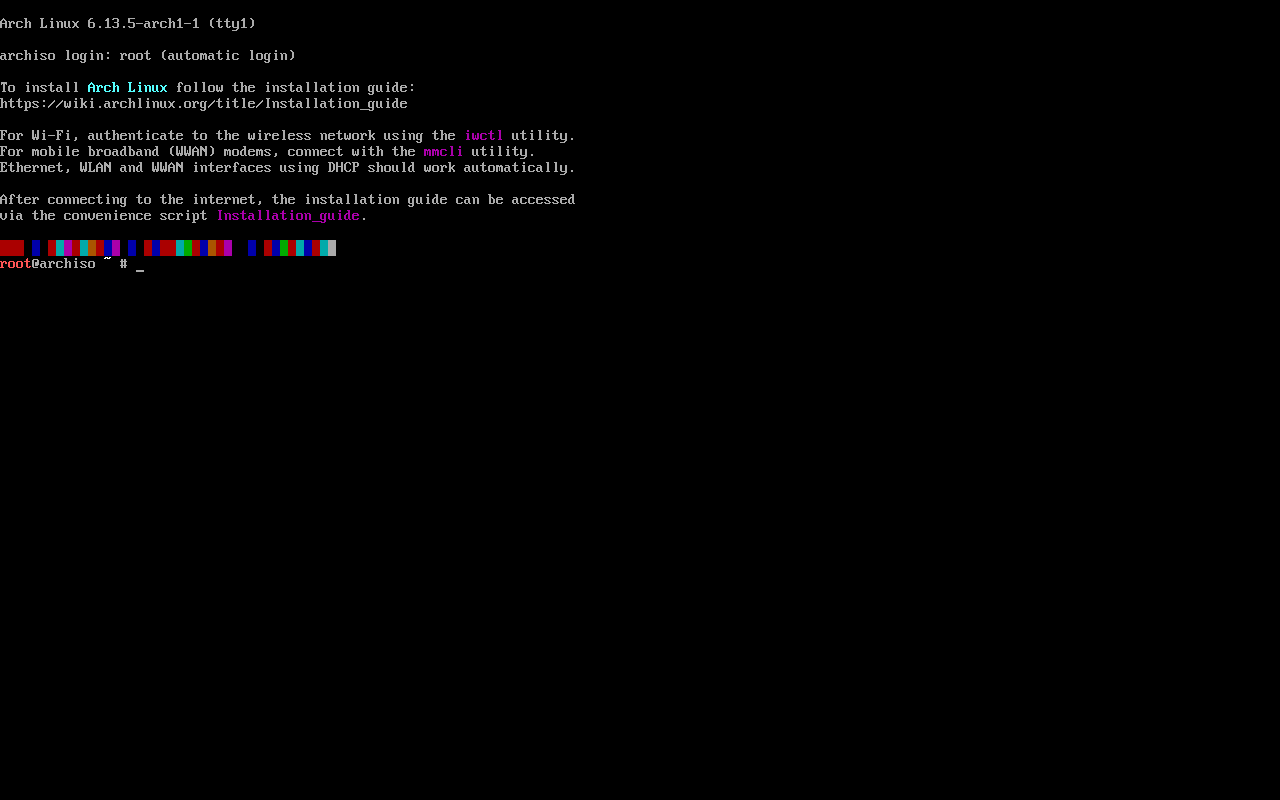
    Plug the thumb drive containing your Arch ISO to your computer, then boot from it. To do this, turn on the PC, then press the one-time boot menu key. Dell and Lenovo PCs use F12. Select your thumb drive and press Enter. If you're using a Ventoy drive, select the Arch Linux ISO from the Ventoy menu, then "Boot in normal mode", which will boot the ISO. Once it boots up, you'll be logged into the root acount. Your screen should look like this:

    The Arch Linux installer

    Setting the console font

    If necessary, change the console font to a larger one. The kernel will try to detect HiDPI screens and set a larger terminal font as needed, but often this doesn't happen so you'll have to set a font manually like so:

    # setfont *ter-124n*
    

    You can see all available fonts by listing the contents of /usr/share/kbd/consolefonts/.

    Connecting to the internet

    First ensure your network adapter is detected and enabled.

    # ip link
    

    Then, if using Ethernet, plug in an Ethernet cable if you haven't done so already. If using Wi-Fi, follow these instructions to connect to your Wi-Fi network.

    1. Check that the adapter isn't blocked with rfkill.
    2. Run iwctl.
    3. List devices, to determine your adapter's name.
    [iwd]# device list
    
    1. If your adapter isn't already on, turn it on.
    [iwd]# device *name* set-property Powered on
    [iwd]# adapter *adapter* set-property Powered on
    
    1. Now you can scan for available networks.
    [iwd]# station *name* scan
    [iwd]# station *name* get-networks
    
    1. Now, connect to your network.
    [iwd]# station *name* connect {SSID}
    
    1. Alternatively, if your network is hidden.
    [iwd]# station *name* connect-hidden {SSID}
    

    If the network is secured with a password, you'll be prompted to enter it when you connect.

    Now, verify you have internet access.

    # ping ping.archlinux.org
    

    The live environment will automagically sync the system clock once you're on the Internet. Run timedatectl to ensure this has occurred. There should be a line saying System time synchronized: Yes in its output. If the system time is inaccurate, you'll run into issues while downloading packages.

    Partitioning

    We've arrived at the destructive parts now, how wonderful! As long as you follow appropriate precautions (take backups, carefully review what you're doing, don't do this sleep-deprived at 2AM) you shouldn't mess anything up.

    Creating partitions

    Your system disk will most likely need to be reformatted for Arch Linux. The exact partition layout depends on how many OSes you're multi-booting and how much you value your sanity. If you've previously partitioned your drive you can skip this step.

    The live environment should automagically detect your disks on bootup. Use either lsblk or fdisk to identify them.

    # fdisk -l
    

    Anything ending in rom, loop, or airootfs can be ignored. Same goes for mmcblk* devices ending in rpbm, boot0, and boot1.

    Note: If you can't see your disks, ensure your SATA or NVMe controller is *not* in RAID mode.

    At the very least, for UEFI boot, you'll need these partitions:

    • An EFI system partition (ESP)
    • A partition for the root directory (/)

    Use a partitioning tool to partition your drive. These examples use fdisk. To launch fdisk on the target disk:

    # fdisk /dev/*sda*
    

    Below is my preferred partitioning scheme. I prefer not to use a dedicated swap partition. I either use swap on zram or a swap file on the root partition. Swap on zram gets rid of the need for a fixed swap size, and a swap file is a lot easier to resize than a dedicated swap partition.

    Mount point Partition Partition type Suggested size
    /efi /dev/*esp* EFI system partition 250MiB
    / /dev/*root* Linux x86_64 root Remainder of the drive. Should be at least 15GiB.

    Note: When using /efi as the mount point for the ESP, the partition containing /boot has to use a filesystem supported by the bootloader (e.g. GRUB). If you're just using Ext4 for the root partition, it should be fine to use this layout as-is, but with Btrfs or other more exotic filesystems that aren't supported by most bootloaders, you'll need to make an additional partition, 1GiB in size, formatted as FAT32 or Ext4, and mounted at /boot.

    In fdisk, enter g to create a new GPT partition table.

    Then enter n to create a new partition. You'll have to provide:

    • A partition number (automatic assignment will work, but remember the numbers!)
    • A starting sector (has to be an absolute sector number. The automatic selection places it as close to the start of the disk as possible.)
    • An ending sector. This can be an absolute sector number, or a partition size in kibibytes (K), mebibytes (M), gibibytes (G), and so on. For example, to set the partition size to 250MiB, enter +250M for the size. If no size is specified the largest contiguous block of unallocated space after the starting sector will be filled.

    After creating the ESP, you need to change its type. Enter t, select your ESP if prompted, and enter uefi for the type.

    Enter p to review the layout. Once you're happy, enter w to apply the changes and quit fdisk. You can also quit fdisk without applying any changes by entering q.

    WARNING: All data on the target drive will be erased at this point. Make sure any important data is backed up to an external location!

    Formatting the partitions

    Once you've created your partitions, they must be formatted. For a basic UEFI setup, the root partition will probably be /dev/sda2 or /dev/nvme0n1p2, and the ESP will probably be /dev/sda1or/dev/nvme0n1p1`.

    The root partition can be formatted with several different filesystems, but a good default choice is Ext4. To format it as Ext4, use the following command:

    # mkfs.ext4 -L "*label*" /dev/*root_partition*
    

    The label can be anything you want, I generally put "Arch Linux" or "Arch Root"

    The ESP has to be formatted as FAT32:

    WARNING: If you're multi-booting and re-using an existing ESP (no please don't at least not with Windows), do NOT reformat it, as this will leave other OSes unbootable.

    # mkfs.fat -F 32 -n "*label*" /dev/*esp*
    

    FAT32 has notable limitations on the label; it can only be 16 alphanumeric characters, and letters must be capitalized. My usual label is "ARCHEFI".

    WARNING: All data on the target partitions will be erased! I know this seems a little pointless after having re-partitioned your drive, but this is more to get through to your sleep-deprived 2AM brain that you NEED TO GO TO SLEEP AND DO THIS WHEN YOU'RE NOT SLEEP DEPRIVED.

    Mounting partitions and swap creation

    Mount the root partition to /mnt:

    # mount /dev/*root_partition* /mnt
    

    Mount the ESP to /mnt/efi:

    # mount --mkdir /dev/*esp* /mnt/efi
    

    Mount any other partitions as needed.

    Now is as good a time as any to create a swap space. Follow the instructions under the respective heading depending on whether you want to use a swap file or swap on zram. If you're planning on using hibernation, read this section below for things you should take into account.

    Swap file

    First create a swap file on the root partition:

    # mkswap -U clear --size *2G* --file /mnt/swapfile
    

    Alter the size if necessary. Then activate the swap file:

    # swapon /mnt/swapfile
    

    Later, genfstab will detect it and add an appropriate fstab entry.

    Swap on zram

    This is a little more complicated. You can enable it in the installer and presumably genfstab would detect it and add at least the fstab entry but that alone isn't enough for it to work right away. In order to enable swap on zram on boot, you need a udev rule to create a zram device, and an fstab entry to use it as swap space. Not to mention it's best to disable zswap when using swap on zram.

    So this part is best done in the chroot, after the base system is installed. And it won't take effect until after a reboot.

    Note that I'm assuming you're doing this in chroot so the paths are typical.

    First, you need to load the zram module at boot. Create a file named /etc/modules-load.d/zram.conf with the following contents:

    zram
    

    Now create a udev rule to create a zram device. Make a file named /etc/udev/rules.d/99-zram-swap.conf with the following contents:

    ACTION=="add", KERNEL=="zram0", ATTR{initstate}=="0", ATTR{comp_algorithm}="zstd", ATTR{disksize}="*4G*", TAG+="systemd"
    

    Finally, add an fstab entry in /etc/fstab:

    ...
    /dev/zram0 none swap defaults,discard,pri=100,x-systemd.makefs 0 0
    

    Note that the priority is set to a high value and the x-systemd.makefs option is used. Idk what the importance is, but it probably helps make it work.

    After rebooting, you should have swap on zram. Note that it's recommended to disable zswap (a similar but different feature) while using swap on zram. This can be done permanently by adding zswap.enabled=0 to your kernel parameters.

    Installing the base system

    First, Pacman's mirrorlist has to be configured to use the fastest mirror servers. Reflector can do this easily. The following command finds the 10 fastest, most recently synced mirror servers in the US, and saves the list to Pacman's mirrorlist.

    # reflector --latest 10 --sort rate --country 'United States' --save /etc/pacman.d/mirrorlist
    

    This is the only configuration data that will be copied to your new installation, so it's worth making sure it's set up properly.

    Anyways time to install some packages. Some notes:

    • If you want to install AUR packages (you probably do), you should install base-devel. It also includes sudo for the sole reason that makepkg uses it to resolve dependencies.
    • Some laptops may require specific firmware packages (i.e. beyond the default firmware set) for sound and Wi-Fi to work correctly.
    • You'll probably want CPU microcode updates when installing on real hardware. They include mitigations for CPU-based vulnerabilities, bugfixes, and other goodies. Install intel-ucode for Intel CPUs or amd-ucode for AMD CPUs.
    • To modify and create filesystems, you'll need the userspace utilities for them. I think btrfs-progs, dosfstools, e2fsprogs, exfatprogs, and ntfs-3g will be all you'll need currently. You can always install additional utilities for other filesystems if you need them.
    • You'll want a network manager to enable network connectivity. I use networkmanager along with wpa_supplicant for Wi-Fi support.
    • We'll be creating some config files, so a console text editor is also a good idea. I prefer nano for quick config file edits.
    • Installing man-db, man-pages, and texinfo will allow viewing manpages which can be very useful.
    • Oh also let's not forget fastfetch to make the every Linux setup screenie ever lol.

    To install these essentials, use pacstrap:

    # pacstrap -K /mnt base base-devel *cpu-ucode* linux linux-firmware btrfs-progs dosfstools e2fsprogs exfatprogs ntfs-3g networkmanager wpa_supplicant man-db man-pages texinfo nano fastfetch
    

    Configuration

    It's now time to perform initial configuration of your installation.

    We'll start by generating the fstab file using genfstab.

    # genfstab -U /mnt >> /mnt/etc/fstab
    

    Check the resulting fstab file for mistakes and correct them as needed.

    Chroot

    Most of our configuration will be done chrooted into the new installation. Let's do that now.

    # arch-chroot /mnt
    

    If you're using swap on zram, you can set this up now.

    Set the time zone

    # ln -sf /usr/share/zoneinfo/*US*/*Eastern* /etc/localtime
    

    Run the following command to generate /etc/adjtime which helps prevent the system clock from drifting.

    # hwclock --systohc
    

    This won't do much though, so you should also set up network time synchronization. Systemd has a timesync daemon built-in, you just need to enable its service.

    # systemctl enable systemd-timesyncd.service
    

    Set the locale

    Setting the system locale determines what language applications use, as well as things like date formatting, currency, and decimal separators. Edit /etc/locale.gen and uncomment all the UTF-8 locales you'll be using. Then generate the locales by running:

    # locale-gen
    

    Now, create /etc/locale.conf and set the LANG variable in it:

    LANG=*en_US.UTF-8*
    

    If you set the console font (or keymap) make the change permanent in /etc/vconsole.conf:

    KEYMAP=*keymap*
    FONT=*ter-124n*
    

    Note that terminus-font is not installed by default, you will need to install it.

    Hostname

    Set the hostname by creating /etc/hostname and put your desired hostname in it.

    Note: The hostname should be a unique, recognizable name. It must be no longer than 63 characters, and can only use alphanumeric characters and the hyphen (-). It can't start with a hyphen.

    Networking

    To set up networking, simply enable NetworkManger's service:

    # systemctl enable NetworkManager.service
    

    For Wi-Fi, ensure wpa_supplicant is installed.

    You will want a firewall as well for security reasons. I use firewalld. To set it up, install firewalld and enable firewalld.service. You can adjust the configuration as needed later, but the default setup should work fine to start with.

    User accounts

    I prefer to disable the root account and set up a user account with sudo privileges.

    First, ensure sudo is installed (if you installed base-devel before, sudo will already be installed). Then, open the sudoers file (sudo's main config file) with visudo.

    # EDITOR=rnano visudo
    

    WARNING: Do NOT use a text editor on the sudoers file directly! Always use visudo to edit it! If the edited file has syntax errors, sudo will be unusable.

    Uncomment this line and save the file:

    ...
    %wheel ALL=(ALL:ALL) ALL
    ...
    

    Now, create a user account with sudo privileges:

    # useradd -m -G wheel *username*
    

    And set a password for your account:

    # passwd *username*
    

    Finally, we can disable the root account:

    WARNING: You may be locked out of the system if you forget your password. Additionally, booting into recovery mode will not work since it tries to log into the root account.

    # passwd -dl root
    

    Hibernation (optional)

    Setting up hibernation on UEFI systems is really easy. It's actually already set up out of the box on Arch Linux lol.

    This requires special setup to use with swap on zram. You'll have to create and enable a separate swap file that will be used only for hibernation. The zram device needs to have a higher priority than the hibernation file, which it should already.

    I generally prefer not to use hibernation, especially when multi-booting, since it causes issues with hardware detection and drive access if you hibernate from one OS and then boot into another OS.

    Anyways, if using hibernation, you should make your swap file at least half the size of your RAM. Enable it as usual, and then to help ensure successful hibernation, change the image-size value to 0 to make the hibernation image as small as possible. Create /etc/tmpfiles.d/hibernation_image_size.conf and put the following in it:

    # Path                  Mode UID GID Age Argument
    w /sys/power/image_size -    -   -   -   0
    

    Now, that's all you need to do unless you're on a legacy BIOS system which this guide doesn't cover. See the ArchWiki page linked above.

    Plymouth (optional)

    Plymouth is a customizable graphical boot screen for Linux. To set it up, first install plymouth, then add plymouth in the HOOKS array of /etc/mkinitcpio.conf:

    HOOKS=(... plymouth)
    

    Note: On KDE Plasma, the plymouth-kcm package allows you to easily change the Plymouth theme from System Settings. You can also download and apply new themes.

    Desktop environment

    I currently use KDE Plasma because it's epic. Other supported DEs can be found on the Desktop Environment ArchWiki page.

    To install a fully featured KDE Plasma session with my preferred KDE apps + Firefox as the web browser, run the following command:

    # pacman -S plasma-meta kde-system-meta plymouth-kcm baloo-widgets breeze5 dolphin-plugins ffmpegthumbs kdeconnect kdegraphics-thumbnailers kdenetwork-filesharing kimageformats kio-admin kio-extras kio-fuse kio-gdrive kwalletmanager phonon-qt6-vlc plasma5-integration qqc2-desktop-style icoutils iio-sensor-proxy libappindicator noto-fonts-emoji power-profiles-daemon qt6-imageformats thermald xdg-desktop-portal-gtk xsettingsd ark dragon elisa filelight gwenview k3b kamoso kate kcalc kcharselect kdenlive kdialog kfind konsole kphotoalbum krita kup kwalletmanager markdownpart okular svgpart firefox
    

    You'll need the appropriate graphics drivers as well. See the table below for the needed packages in addition to mesa.

    GPU brand: Required packages for Vulkan and hardware video acceleration:
    AMD vulkan-radeon (hardware video acceleration is built into mesa)
    Intel vulkan-intel (Only supports Broadwell and newer GPUs)
    intel-media-driver (Broadwell and newer, recommended)
    libva-intel-driver (GMA 4500 through Coffee Lake, legacy driver)
    For QuickSync video, install libvpl and one of these packages depending on your hardware:
    vpl-gpu-rt (Tiger Lake and newer)
    intel-media-sdk (Broadwell through Ice Lake)

    If using an Nvidia GPU (unlikely for me), see the Nvidia page on the ArchWiki.

    Regenerate the initramfs

    Some of the changes we made before will require regenerating the initramfs, so do that now:

    # mkinitcpio -P
    

    Installing a bootloader

    Up until now, the system is unbootable. Let's fix that. I use GRUB which is like the default Linux bootloader.

    Note: Linux support for Secure Boot is still fairly weak and setting up your installation for Secure Boot will be annoying so I recommend not doing that unless you like pain.

    Install grub and efibootmgr. You'll need to have the ESP mounted (it should already be mounted) for the next steps. Substitute its mountpoint for *esp* in the next steps.

    Run the following command to install GRUB to the ESP:

    # grub-install --target=x86_64-efi --efi-directory=*esp* --boot-directory=*esp* --bootloader-id="Arch Linux"
    

    The bootloader-id value can be anything you like, it determines the directory on the ESP where GRUB is placed and the name of its UEFI boot entry. Not all UEFI firmwares can handle spaces in it, however, so consider using a value without spaces.

    Now, before generating the main config file, we need to change some options. Edit /etc/default/grub and change the GRUB_CMDLINE_LINUX_DEFAULT line to match this:

    GRUB_CMDLINE_LINUX_DEFAULT="quiet loglevel=3 systemd.show_status=auto rd.udev.log_level=3 splash"
    

    Any existing parameters can be left. They should be in the order above. See Silent boot on the ArchWiki for more info.

    Now, generate the config file:

    # grub-mkconfig -o *esp*/grub/grub.cfg
    

    This path doesn't change.

    Finishing up

    Whew! We're about done! Exit the chroot by entering exit or pressing Ctrl-D. Then reboot:

    # reboot
    

    Remove the installation medium and your computer should boot into your new Arch Linux installation. Log into your user account and you've done it!

    Review the General recommendations page on the ArchWiki for some useful tips (some of them have already been covered here) and enjoy your new Arch Linux installation! Don't forget to make a fastfetch screenshot after the first successful boot for good luck!

    Installing other apps and my KDE rice

    Ahh but there's still a couple things to do. We'll start with an AUR helper. I use yay, which supports the Apdatifier widget (which can do some basic package management stuff but most importantly makes it way easier to keep your system up to date).

    To install yay, open a terminal and navigate to a directory where you won't mind having an AUR package compiled. Your user account needs read/write permissions on it. Then run the following:

    $ git clone https://aur.archlinux.org/yay.git && cd yay
    $ makepkg -sci
    

    I also like to add the Chaotic-AUR repository to my systems as it provides prebuilt AUR packages. It doesn't provide every AUR package but it provides a lot and is nice to have.

    Now, here's all the other apps I like to install:

    $ yay -S --needed discord easyeffects ghostwriter goverlay keepassxc ktorrent lact libreoffice-fresh mangohud modrinth-app-bin neovim obs-studio octopi spotify steam visual-studio-code-bin
    

    I use the modrinth-app-bin package since the from-source version takes a while to compile and it's not on the Chaotic-AUR.

    And finally my rice. In pursuit of not repeating myself (and providing even more out-of-date instructions) I'll just link to the repository. Follow the instructions in there and now you're REALLY done lol.

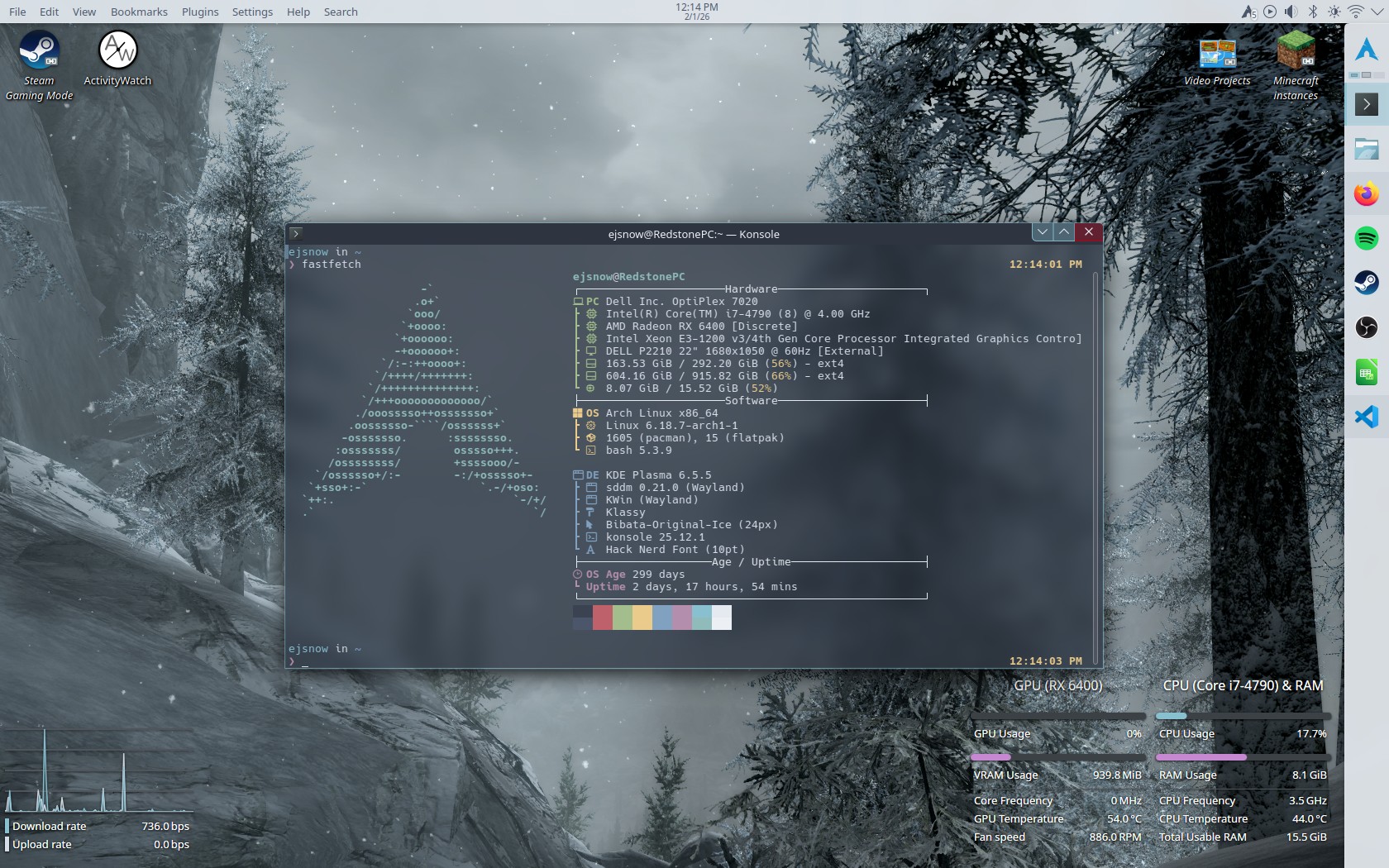
    My Arch setup on my PC

    The finished product

    References

    This document references MANY ArchWiki pages and a few manpages. Most of them were linked but here's a full list anyway: